
In a world where emojis speak louder than words and memes are the new love letters, knowing how to send a text message on an iPhone is essential. Whether it’s a quick “What’s up?” or a heartfelt “I miss you,” mastering the art of texting can elevate your communication game. Plus, let’s face it, nobody wants to be that person who still sends carrier pigeons.
Understanding Text Messaging on iPhone
Mastering text messaging on an iPhone is essential for effective communication in today’s digital age. With various options available, users can easily connect with others.
Types of Text Messages
Text messages fall into several categories. Standard SMS messages reach any mobile device, typically limited to 160 characters. Multimedia Messaging Service (MMS) allows users to send images, videos, and audio clips, enhancing engagement. iMessage, exclusive to Apple devices, offers seamless communication over Wi-Fi or cellular data, supporting rich media and group chats. Additionally, users can send voice messages, providing a personal touch that’s often more expressive than text alone. Each type serves specific needs, making communication flexible.
Key Features of iPhone Messaging
iPhone messaging comes equipped with numerous features designed for user convenience. Users benefit from advanced features like read receipts, indicating when messages are read. Group messaging simplifies conversations among multiple recipients, allowing efficient information sharing. Furthermore, the integration of stickers and GIFs adds a fun, creative element to chats. Voice typing streamlines message creation, enabling hands-free communication. Notifications help users stay updated on incoming conversations, ensuring timely responses. Each feature enhances the messaging experience, fostering more meaningful connections.
How to Send a Text Message on iPhone
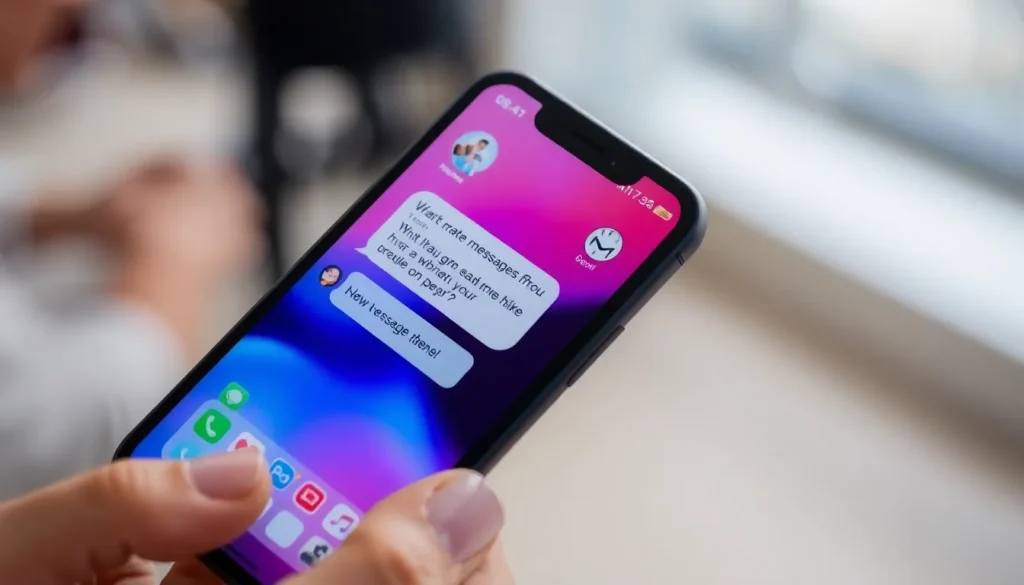
Sending a text message on an iPhone is intuitive and straightforward. Users can quickly connect with friends, family, or colleagues through the device’s Messages app.
Using the Messages App
Accessing the Messages app begins by locating the green icon with a white speech bubble on the home screen. Tapping the icon opens conversations or allows the creation of a new message. To start messaging, select the pencil-and-paper icon in the upper right corner, enter the recipient’s name or number, and then type the message in the text field. Pressing the blue send button sends the text. iPhone users enjoy additional features like read receipts and stickers for a richer messaging experience.
Sending Multimedia Messages
Sending multimedia messages enhances communication. Users can share photos, videos, or audio clips along with text. To attach multimedia, tap the camera or photo icon within the message interface. After selecting a photo or video from the library, it shows as a thumbnail in the message preview. Users then add accompanying text if desired. Finally, pressing the send button transmits the multimedia message. This feature helps convey emotions and adds an engaging visual element to text conversations.
Troubleshooting Common Issues
When sending text messages on an iPhone, users may encounter several common issues. Addressing these problems efficiently can improve the overall messaging experience.
Message Not Sending
Messages may fail to send for various reasons. A weak or unstable network connection often causes this issue. Users should check their connection status and toggle Airplane Mode on and off to refresh it. Restarting the iPhone can also resolve temporary glitches in the device. If the Messages app is not updated, check for updates in the App Store. Additionally, confirming that the recipient’s phone number or email address is correct aids in successful delivery. If iMessage is enabled, ensure the feature is functioning on both ends for seamless communication.
Receiving Delayed Messages
Delayed message receptions can stem from network issues or Apple’s servers. Slow internet connections can hinder message delivery, impacting overall performance. Users might try switching between Wi-Fi and cellular data to enhance connectivity. Sometimes, the Messages app requires closure and reopening to refresh its activity. Ensuring that the device has sufficient storage space can also improve functionality. If delays persist, checking Apple’s System Status webpage helps determine if there are broader service interruptions affecting message delivery.
Tips for Effective Text Messaging
Effective text messaging enhances communication through thoughtful use of visuals and organized conversations. Implementing these strategies can lead to clearer, more enjoyable interactions.
Using Emojis and Stickers
Emojis and stickers offer vibrant ways to express emotions. Incorporate relevant emojis to add tone and context, making messages more engaging. Use stickers for personalization and creativity, which can brighten up any conversation. They can convey feelings that words sometimes can’t capture. Consider the audience when selecting emojis; some users might prefer more formal communication while others enjoy playful imagery. Maintain a balance, avoiding overuse that could clutter the message or distract from the content. Utilizing these tools boosts engagement and can foster stronger connections.
Organizing Conversations
Organizing conversations on an iPhone enhances message readability. Create separate threads for distinct topics, making it easier to follow discussions. Group messaging allows for streamlined exchanges among multiple participants. Utilize pinned conversations to keep important threads at the top for quick access. Archiving older chats helps maintain focus on current conversations, reducing clutter. Regularly deleting irrelevant messages can also improve organization. A clean chat interface aids in quicker responses and enhances overall messaging efficiency. Encourage the use of recognizable naming for group chats to help participants stay oriented.
Mastering text messaging on an iPhone opens up a world of communication possibilities. With various messaging types and features at their fingertips, users can connect more effectively and creatively. The ability to send multimedia messages and utilize fun elements like emojis and stickers enhances conversations and makes them more engaging.
When challenges arise, knowing how to troubleshoot can save time and frustration. By applying the tips shared in the article, users can ensure their messaging experience remains smooth and enjoyable. Ultimately, thoughtful texting not only improves clarity but also strengthens relationships, making every message count in today’s fast-paced digital world.

